
Play by listening and speaking: narration and voice
Narration: the case and the suspects with voices
In cases with narration, Confessd is something to listen to as well. A narrator reads the case text and the events, and each suspect answers in their own voice, matching their gender and age. The voice follows the emotion of the answer: a nervous or angry suspect sounds different from a calm one. While someone is speaking, the music lowers and the text appears in time with the audio.
The ready-made questions have a voice too: your detective's, male or female depending on the avatar you chose. With voice on, you hear the question and then the answer. During speech, a small tag with sound waves appears over the photo of whoever is talking: on your avatar when it's your question, on the suspect's photo when it's the answer.
Not every case has narration in every language. When a case doesn't have voice in your language yet, the voice buttons simply don't appear and you play with text only. The voice arrives later on its own, without updating the app.
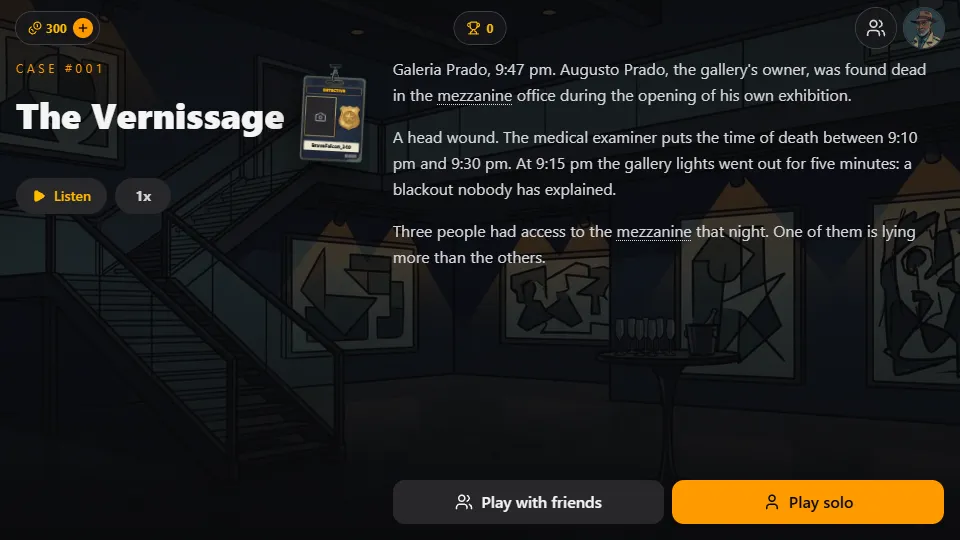
Where to turn it on or off and change the speed
In the case text there's the "Listen" button, with the speed next to it: each tap cycles through 1x, 1.5x, 2x and 0.5x.
On the suspects and interrogation screens, the voice is a round button in the header: yellow with voice on, dark with it off. Tapping it opens a menu with "Turn on" or "Turn off" and the speeds 0.5x, 1x, 1.5x and 2x. Picking a speed turns the voice on at that speed; changing it mid-speech changes the audio instantly. Your choice is saved on the device and applies to future cases.
Voice is on the first time. The "Sound" option in Settings controls music and effects and doesn't mute the narration: to play by reading only, use the voice button.
Typed questions and Recorder down
Answers to questions you type appear in writing only. With voice on, when you send a typed question the "Recorder down" window appears, explaining that the suspect doesn't speak for that answer; the clerk takes it all down. Tap "Read the statement" to continue, or check "Don't show again" to stop seeing the notice. Ready-made questions keep their voice as usual.
Asking out loud: your device's dictation
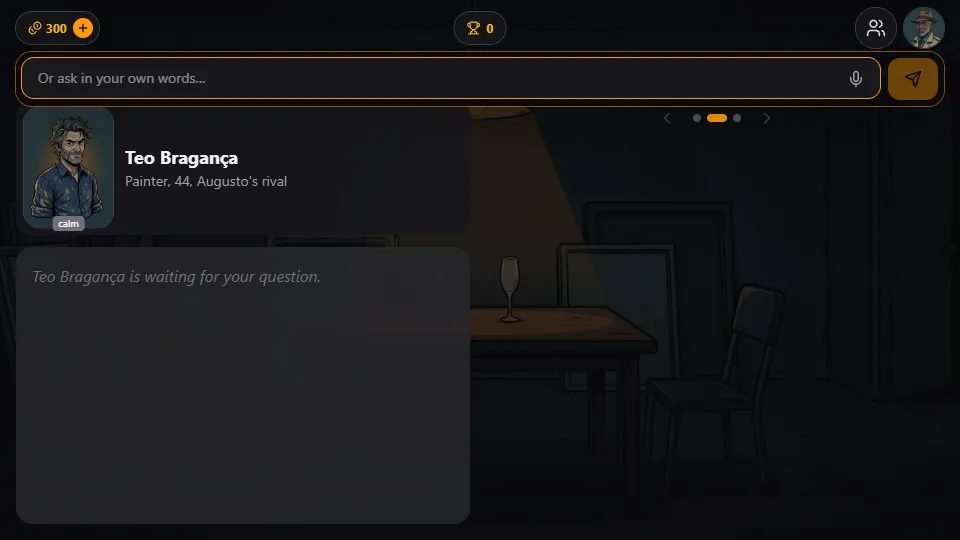
You don't have to type your own questions. In the question field, at the bottom of the interrogation screen, there's a microphone ("Dictate question"). Tap it, say your question and your device's own dictation types the text into the field. Check it and tap send. While the microphone is listening, the music lowers.
On a phone, dictation is the system's. In a computer browser it works in Chrome, Edge and Safari; in Firefox the microphone doesn't appear. The first time, the device or browser asks for permission to use the microphone. If you say no, the game carries on the same, you just type.
The same microphone appears in the post-case room, in the In the cell minigame, where you answer the jailed suspect by speaking or typing.
Frequently asked questions
Why doesn't the case have the voice button?
Because that case doesn't have narration in your language yet. It works normally with text only, and the buttons appear on their own once the narration is ready.
I turned off the sound and the suspect is still talking. How do I mute the voice?
Sound in Settings handles music and effects. To mute the narration, tap the voice button in the header and choose Turn off.
Can I ask questions out loud on my computer?
Yes, in Chrome, Edge and Safari. Tap the microphone in the question field and allow microphone access. In Firefox, type the question.